How it works
Nutrition is a Model Context Protocol (MCP) service. ChatGPT or Claude call our tools; we write to the Garmin destination you own or were granted.
1. Create an account here
Nutrition accounts are separate from pack4back.com. Use email and a password (at least 8 characters), Google, Facebook, or a magic link after the account exists. You must accept the Privacy Policy and Terms of Use. Continuing with Google or Facebook accepts those documents. You can also create the account in the Connect window in step 3.
2. Connect Garmin
On the dashboard or during Claude/ChatGPT authorization, enter your Garmin Connect email and password once. This is a temporary workaround while we wait for Garmin to approve official API access. The password is not stored. If Garmin asks for MFA, enter the code. We keep an encrypted session used only to log nutrition, water, weight, and related diary actions you request.
3. Add the MCP connector
No API key. Garmin is connected on our site during Connect — not inside the chat.
- Open Claude (web or desktop) and click Customize in the top-left corner.
- Click Connectors.
- Click +, then Add custom connector.
- Give it a name, for example Garmin Nutrition.
- Paste this URL into the Remote MCP server URL field:
https://nutrition.pack4back.com/mcp - Click Add.
- Click Connect — Nutrition login opens. Continue with Google, Facebook, or email. If Garmin is not connected yet, enter your Garmin Connect email and password (temporary until official API approval), then Allow.
- Done. It works right away and shows up in Claude on iOS and Android. Meals are written to Garmin Connect+.
Works on every Claude plan. The free plan allows one connected MCP server at a time.
- Open ChatGPT on the web → Settings → Apps. If you do not see Create, turn on Developer mode in Advanced settings.
- Click Create app (or add a connector).
- Name: Garmin Nutrition.
- For Connection, paste this server URL:
https://nutrition.pack4back.com/mcp - Authentication: OAuth. Leave Advanced OAuth closed.
- Check I understand and want to continue.
- Click Create, then sign in — Nutrition login, Garmin Connect if needed, then Allow.
- Done. The connector also appears in the ChatGPT iOS and Android apps. Meals land in Garmin Connect+.
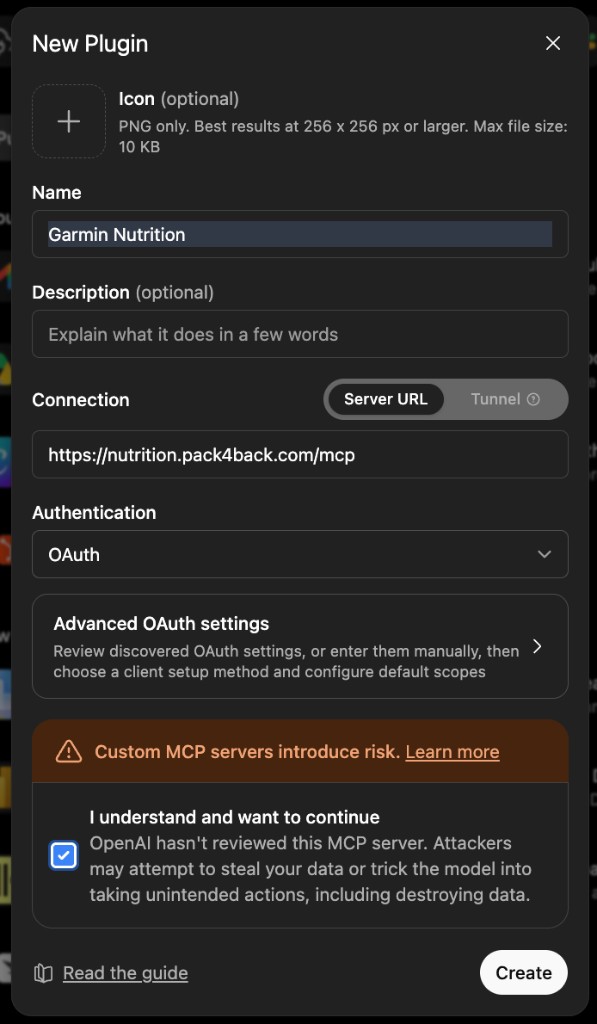 Open the ChatGPT New Plugin screenshot
Or install from Smithery.
Add this config to Cursor, VS Code, Claude Code, and similar MCP clients. Windsurf uses serverUrl instead of url.
{
  "mcpServers": {
    "nutrition": {
      "url": "https://nutrition.pack4back.com/mcp"
    }
  }
}
In Claude Code: claude mcp add --transport http nutrition https://nutrition.pack4back.com/mcp
The client opens Nutrition login. Connect Garmin there if you have not already, then Allow. Gemini’s consumer chat cannot add a remote MCP connector today.
4. Allow access
The authorize screen asks you to allow ChatGPT or Claude to use Nutrition. You can revoke that access later by signing out of all sessions in Settings (MCP refresh tokens are dropped when you delete the account).
5. Talk in natural language
Example: “log a 600 kcal omelette for lunch.” If you share family access, say who it is for (“for Oksana”). The server only writes to destinations in your allow-list. Guessed nicknames do not grant access.
6. Family and coaches
Sharing is web-only: invite, approve a request, or revoke. Coaches can be limited to read-only with an expiry. Never grant access through the chat — a model can be tricked.
Settings and your data
In Settings you can change optional prompt-storage consent, see who has access, revoke grants, leave someone else’s destination, sign out everywhere, or delete your account.
For supporters
Nutrition is free to use. If it is useful, Buy me a coffee.